The following new features and enhancements have been added over the past several versions:
Measurements during Live Video
VisionGauge® OnLine now supports performing manual measurements directly on Live Video. This enhancement allows users to evaluate features in real time without first capturing a still image, streamlining inspection workflows and improving efficiency during setup, validation, and quick checks. Note that in most cases, it is still advised to freeze the image before performing measurements to ensure objects do not move during the measurement procedure.
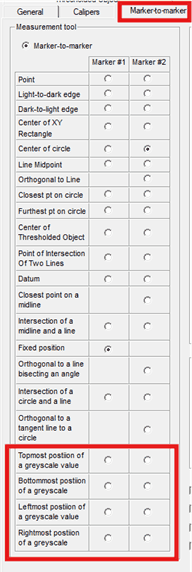
Marker-to-Marker Options for Top/Left/Right/Bottom-most Positions
Manual Marker-to-Marker (M2M) measurement tools now include options to select the topmost, bottommost, leftmost, or rightmost position of a greyscale value. This enhancement expands manual measurement flexibility, allowing more precise edge-based evaluations directly within the Marker-to-Marker tool.
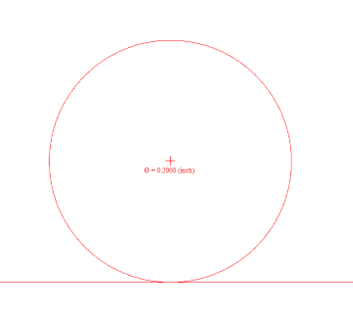
Roll Pin Distance – Display Diameter
Roll Pin Distances measurements now include the diameter of the pin as text when drawing the result on the image.
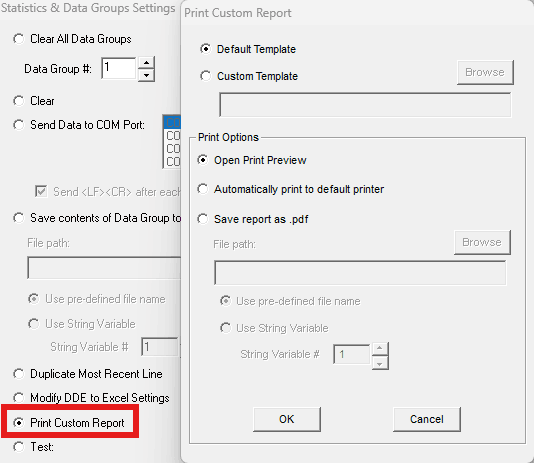
Report Builder Output
VisionGauge® OnLine now allows users to select a custom report template and automatically print or save the report as a PDF directly from within a Program step. This enables fully automated, standardized report generation as part of inspection workflows.
This new option is found in the Statistics & Data Group Settings of the Program Toolbox.
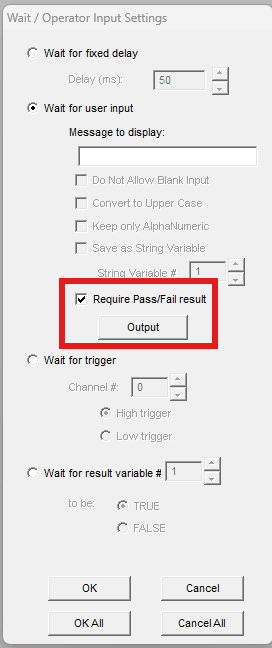
Wait / Operator Input Settings
The “Wait for User Input” option in the “Wait / Operator Input Settings” now includes a Require Pass/Fail result option. When enabled, the operator must explicitly select a Pass or Fail outcome before the program continues. This enhancement allows manual verification steps to be formally integrated into automated inspection programs, improving traceability and ensuring that operator decisions are taken as part of the program flow.
Digital Input Monitoring – Resume Program when signal is reversed
An enhancement has been added to Input Monitoring that allows a paused program to automatically resume when a monitored digital input returns to its original state. When configured within the “Pause Program” input section on the Input Monitoring settings, a program can pause when a specific input signal changes (high or low), and, if enabled, automatically resume once that signal is reversed. This gives the user more flexible control for signal-based automation workflows, allowing seamless pause-and-resume behavior based on external input conditions.
Measurements – Marker-to-Marker Closest and Furthest Point on a Circle
The Program Toolbox now supports selecting the Furthest Point or Closest Point on a Circle for Marker 1. This enhancement expands geometric analysis capabilities by allowing programs to automatically determine extremum points on circular features, improving flexibility for advanced measurement and automation workflows.
Min-Max Tool – Output Extremum Position
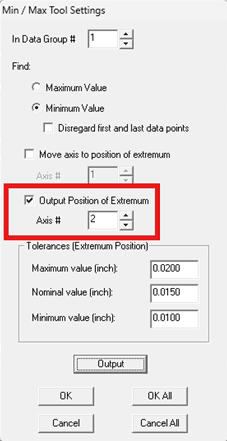
The Program Toolbox “Min/Max tool” step now includes the option to output the stage position at which the minimum or maximum value is found directly to a Data Group. When analyzing measurement data, the system can determine not only the extremum value, but also the axis position where it occurs. This position can now be recorded and evaluated independently within a Data Group, enabling additional Pass/Fail criteria based on location. For example, when rotating a part to identify a maximum feature value, the software can now output the angle at which that maximum occurs, allowing programs to verify whether it falls within an acceptable range.
Set Numerical/String Variables – Append Most Recent Pass/Fail Result
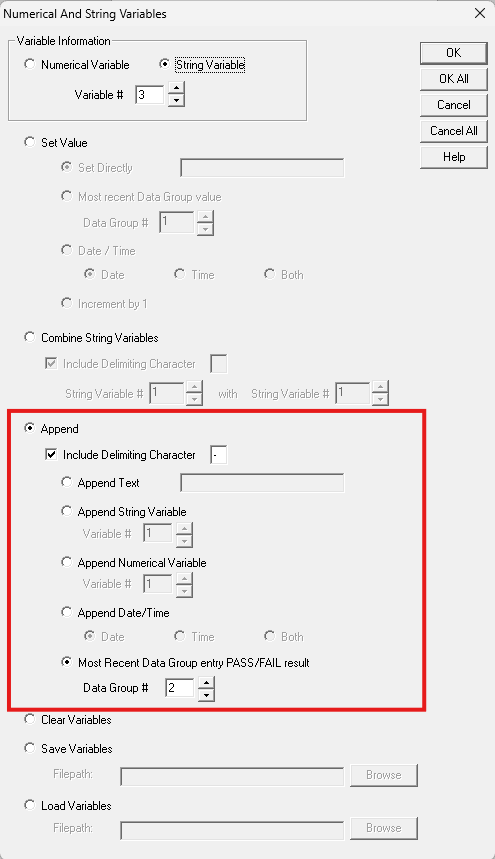
The Program Toolbox “Set Numerical/String Variables” step now includes the option to append the most recent Pass/Fail result from a Data Group to a String Variable. This enhancement enables inspection outcomes to be incorporated directly into program logic, labeling, or reporting workflows.
APF Entity Analysis Offline mode
APF (Auto-Pass/Fail) Entity Analysis can now be performed in offline mode directly from Data Groups. Previously, APF Entity Analysis was available only on Live Video while a DXF was overlaid on the part. With this enhancement, programs can store the captured image and associated DXF data in a Data Group, allowing users to later select an entry and automatically reload the image and CAD overlay to perform APF Entity Analysis on a non-live image. This expands analysis flexibility by enabling detailed review and verification after program execution, rather than requiring live inspection.
Data Group Pass/Fail Map Enhancements
The Data Group Pass/Fail Map has been updated with the ability to display the value of the highlighted area in the associated Data Group when hovering over it. If Pass/Fail Reversal is enabled, operators may also now right-click on the highlighted region of the map to choose to reverse the Pass or Fail result in the Data Group as part of their review.
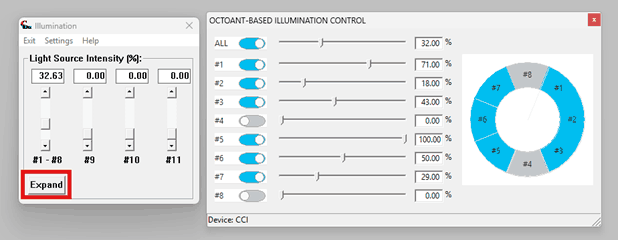
The Octant-Based Illumination controls have been refined to provide a cleaner workspace and a more intuitive graphical representation of independent LED illumination controls for systems with led ring lights. The updated interface improves how individual illumination regions are visualized and adjusted, making it easier to understand and configure lighting conditions for inspection tasks while maintaining compatibility with existing illumination systems.
Tilt-Axis Transforms
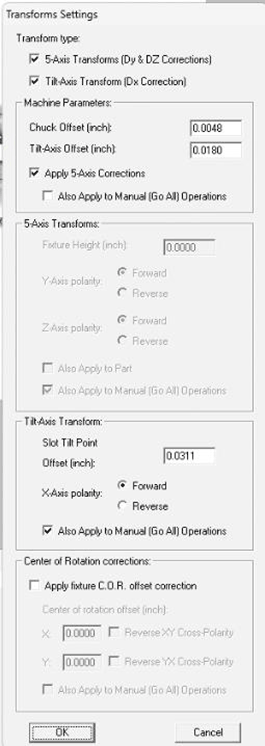
Tilt-Axis Transforms have been introduced for systems with axes that tilt to provide an offset correction in X. These corrections are disabled by default. Also, the Transforms Settings are now accessible when a system is configured with four or more axes. These settings are available within the Motion Control Toolbox under the Transforms Settings menu and are displayed only on systems that support the required multi-axis configuration
Transform handling during certain stage movement operations, on those systems requiring transforms to be applied, has been refined to prevent them from being applied multiple times to already transformed positions. Transforms are now no longer re-applied when clicking a button in the Motion Toolbox, when navigating to an inspection result from either the Data Group Pass/Fail Map or directly from a Data Group, and when resuming a program after a Pause operation. This update improves stage positioning accuracy and ensures more consistent motion behavior during inspection workflows on systems with transforms enabled.
MTEXT and TEXT CAD entities now properly preserve leading and trailing whitespace within strings. This allows spacing to be retained when importing or working with DXF files that intentionally include whitespace formatting around text elements.
DXF ELLIPSE entity extents now center the Field of View (FOV) correctly, improving geometric visualization accuracy.
We corrected some situations in which CAD entities with positive and negative tolerance values being read in from file were improperly displayed
Time and Date values are now properly assigned to String Variables when using the “Set String/Numerical Variables” step in the Program Toolbox.
Program motion now resumes smoothly and consistently when continuing from a Program Toolbox Pause during a motion control step involving a series of points.
APF Entity Analysis results now display saved images consistently within Data Groups configured to collect images and start analysis.
Corrected a crash condition that may occur when changing measurement units while Live Video is active and displaying a DXF file. Unit changes made through the Motion Control Toolbox, via Settings Toolbox buttons, or when interacting with Data Groups that load different unit configurations now function reliably without interrupting Live Video operation.